Create an Insight and Add to a new Dashboard
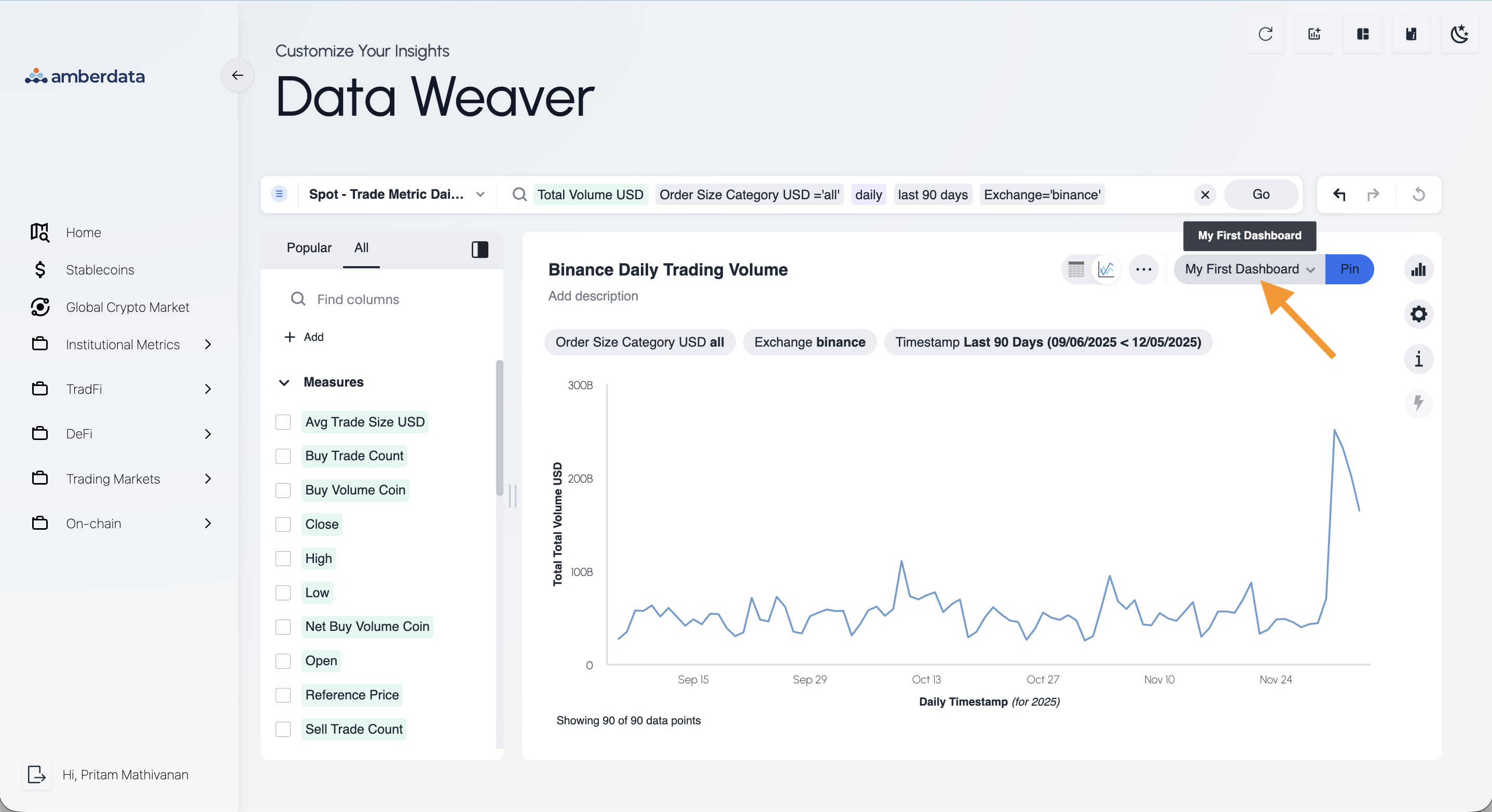
- Once you have an insight from Data Weaver that you want to save, click on the Pin button in the top right corner.
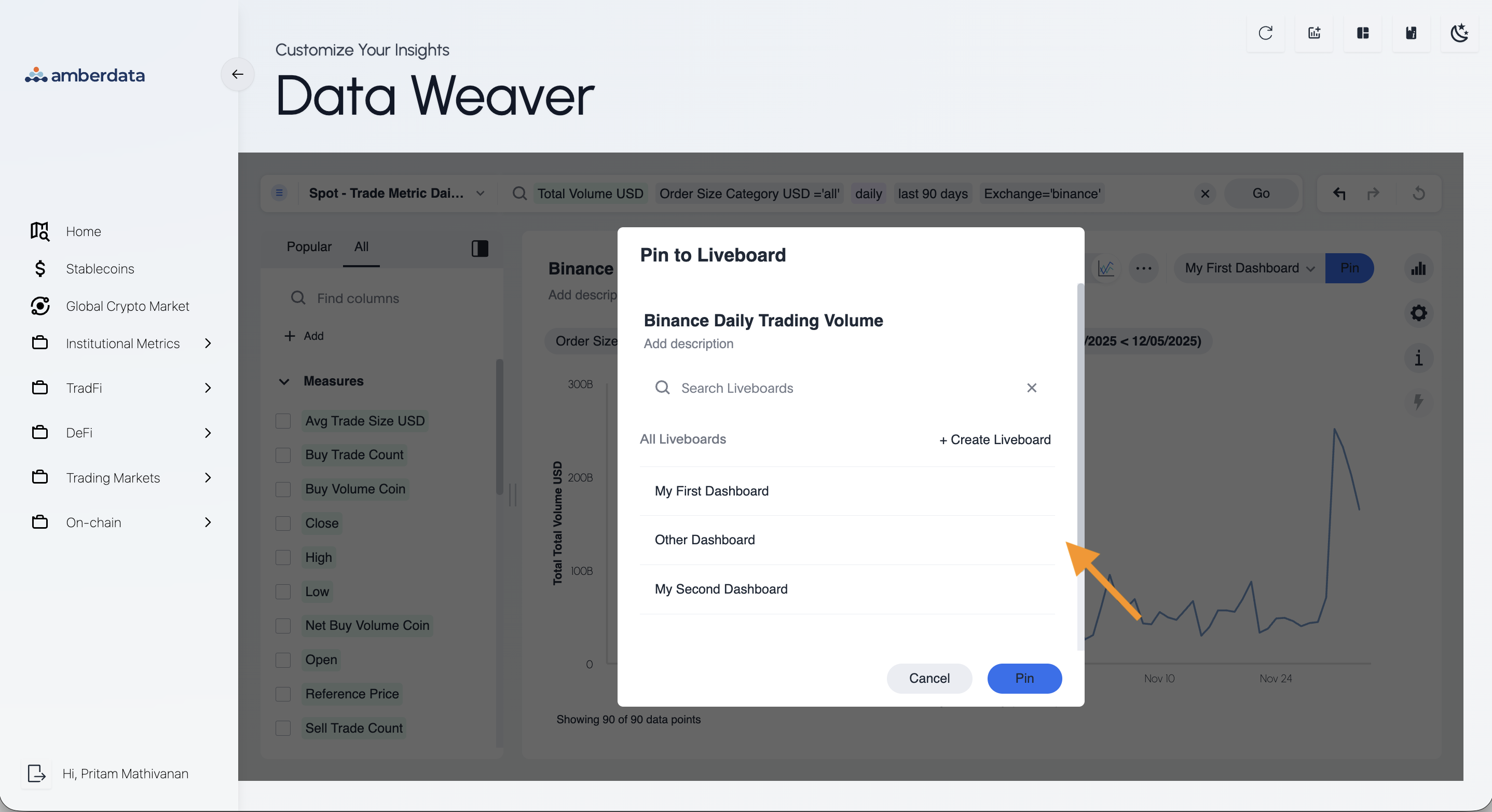
- This will open an additional menu, where you’ll see the list of available dashboards. Your menu may look one of two ways depending on whether you have or have not previously created a dashboard.
No Previous Dashboards Exist
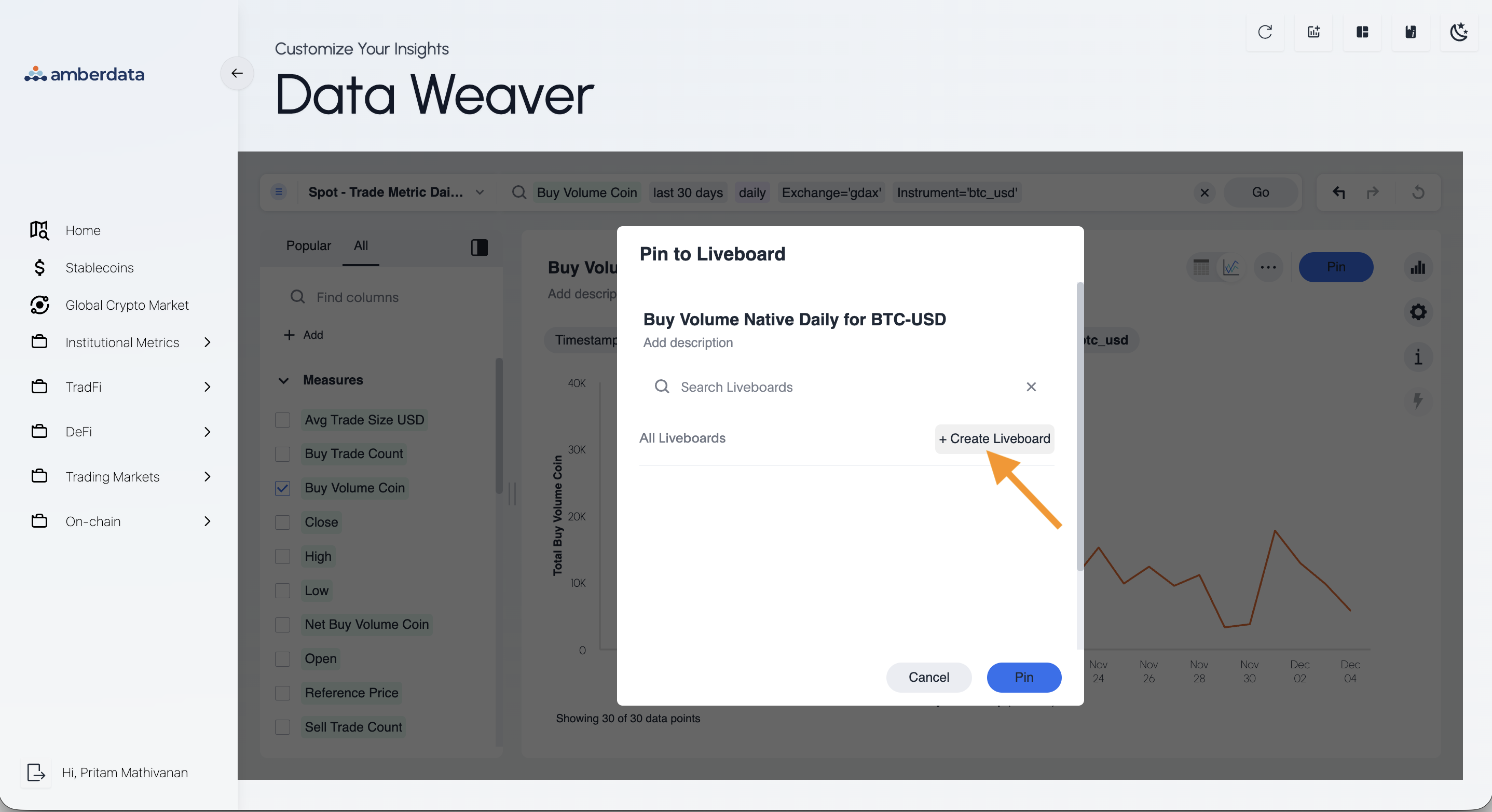
- If you have no dashboards available, click on the Create Liveboard button, which will create an empty text section for you to type in your dashboard name
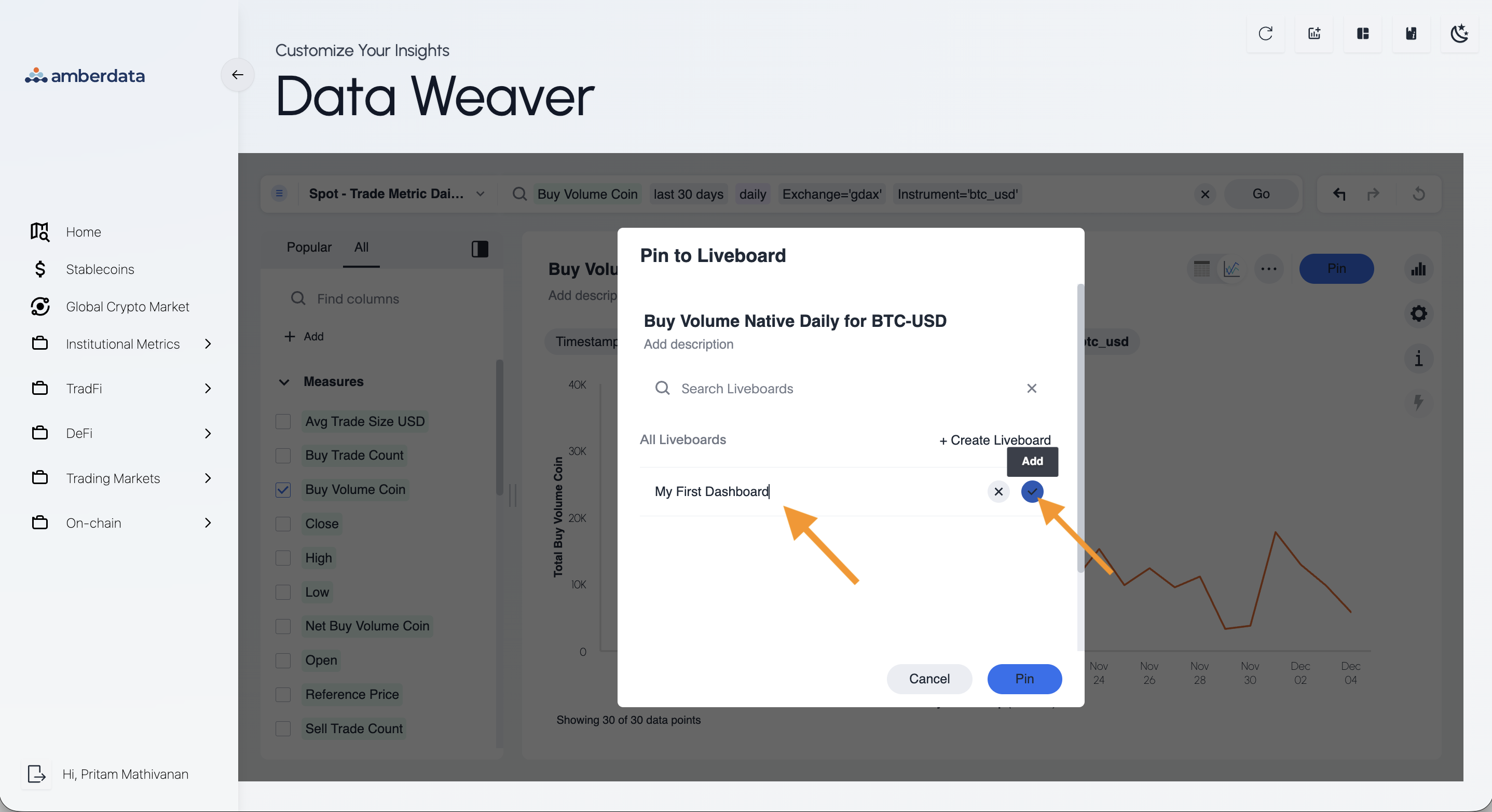
- Once you have a name for your dashboard, click on the blue check to the right of the name to save it
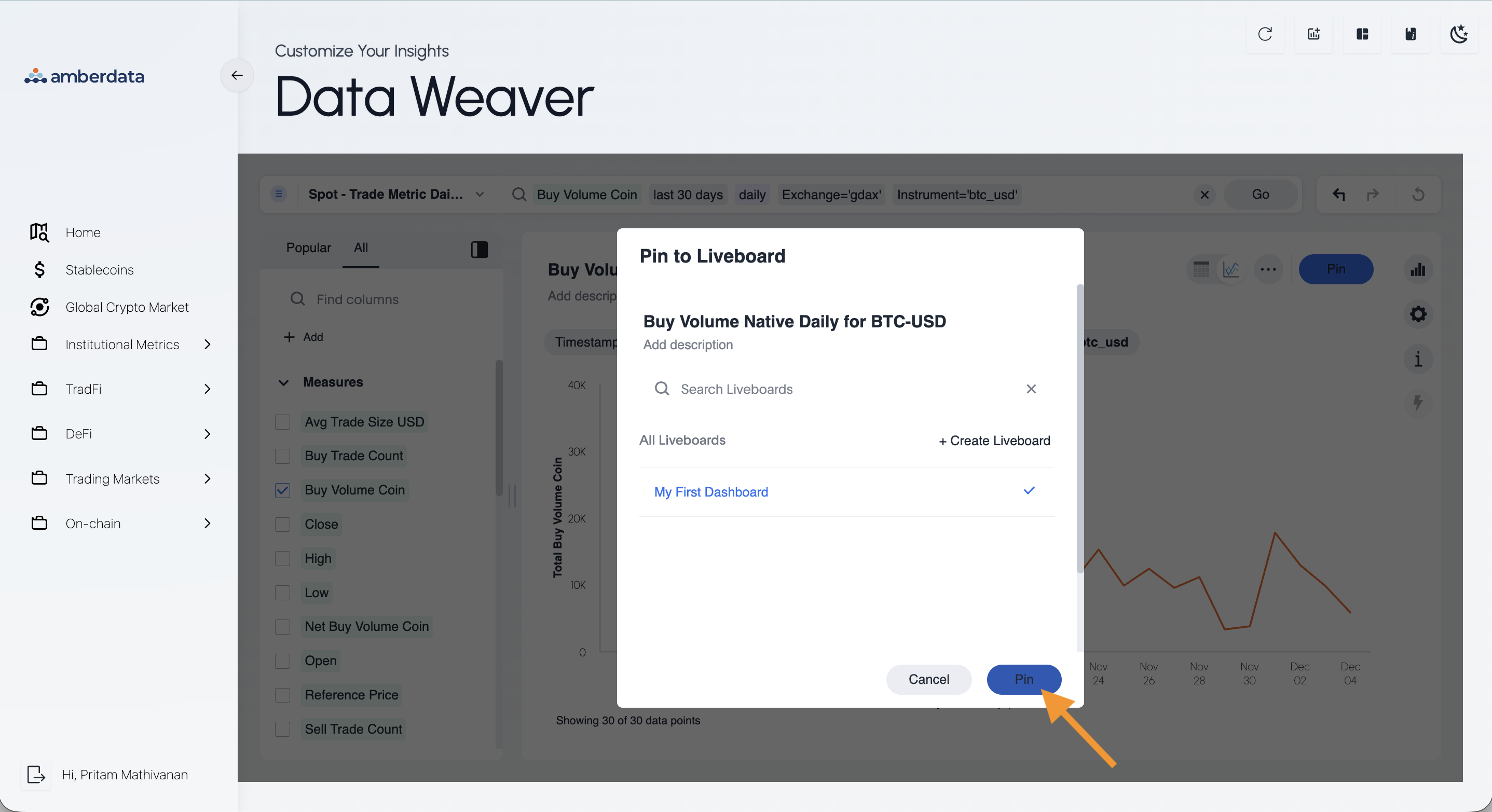
- And to finish saving the insight to the newly created dashboard, click on the Pin button at the bottom of the menu
Some Previous Dashboards Exist
- If you already have existing dashboards, click on the dropdown menu just left of the Pin button
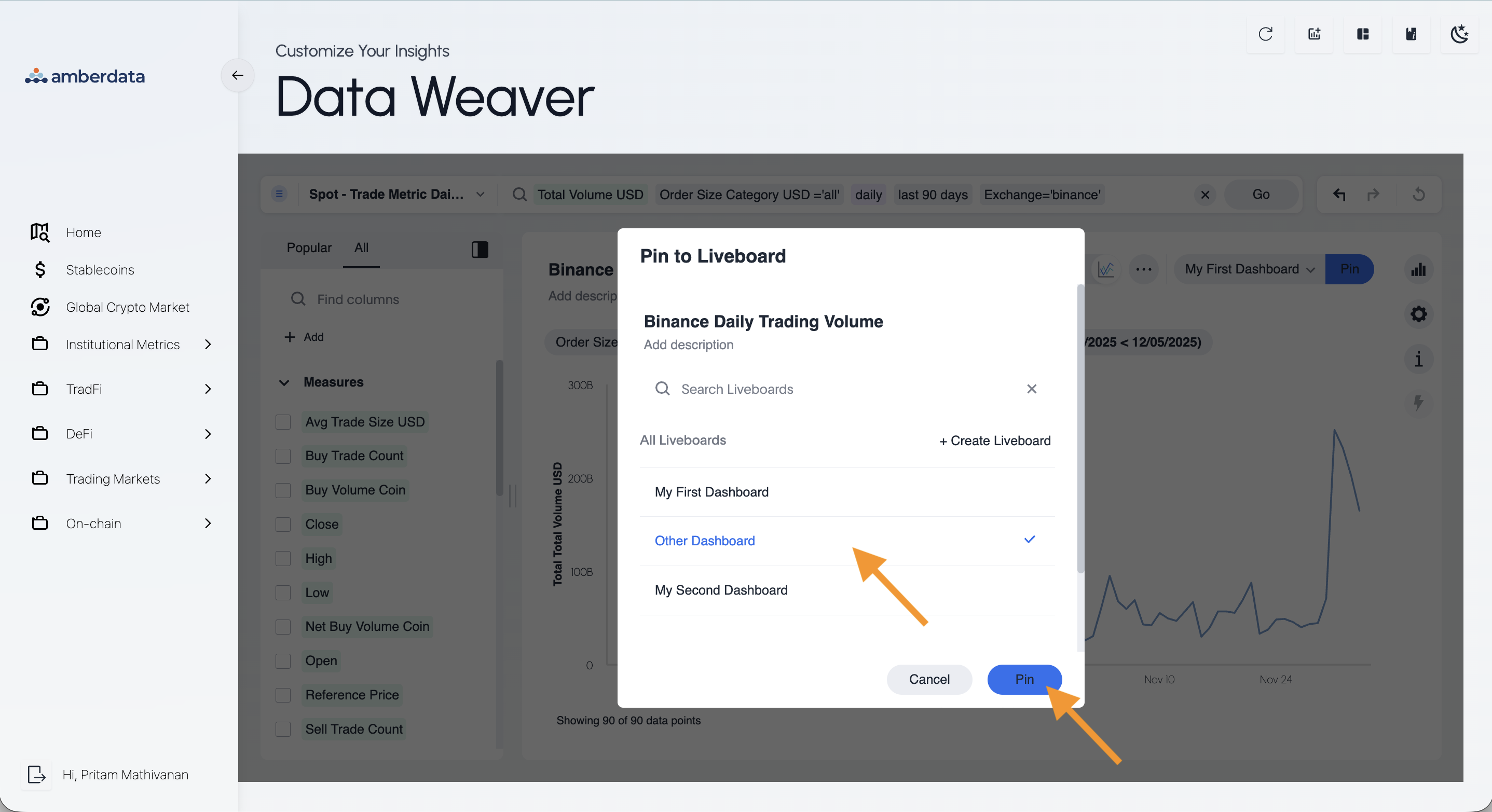
- You’ll see the list of your available dashboards, click to choose which dashboard you want to save the insight to. When selected, a checkmark will appear to the right of the dashboard name
- And to finish saving the insight to the selected dashboard, click on Pin in the bottom right
Navigate to Your Dashboards
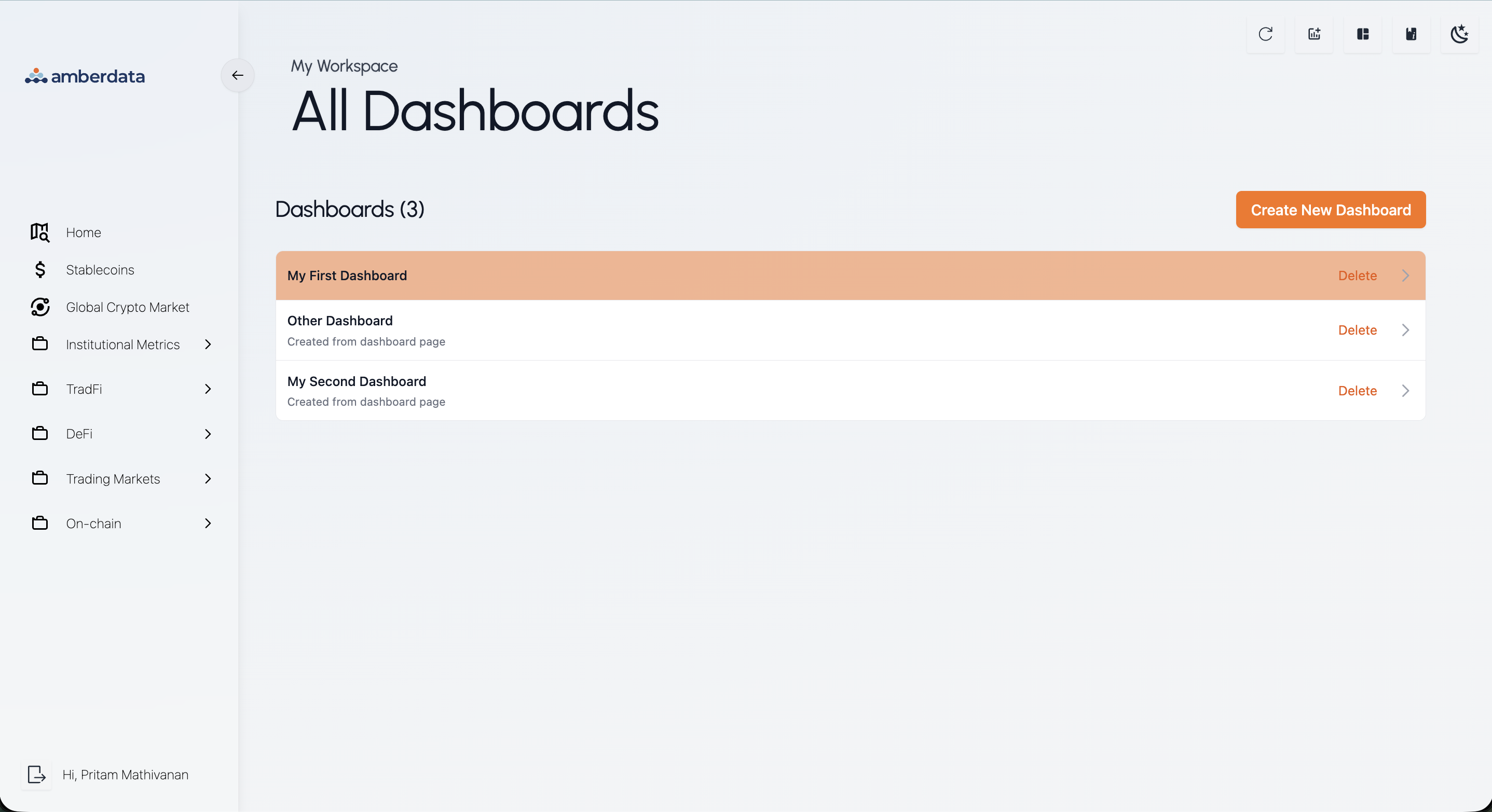
- In the top right, click on the Dashboard Gallery button, this will take you to a new screen where you will see your complete list of dashboards
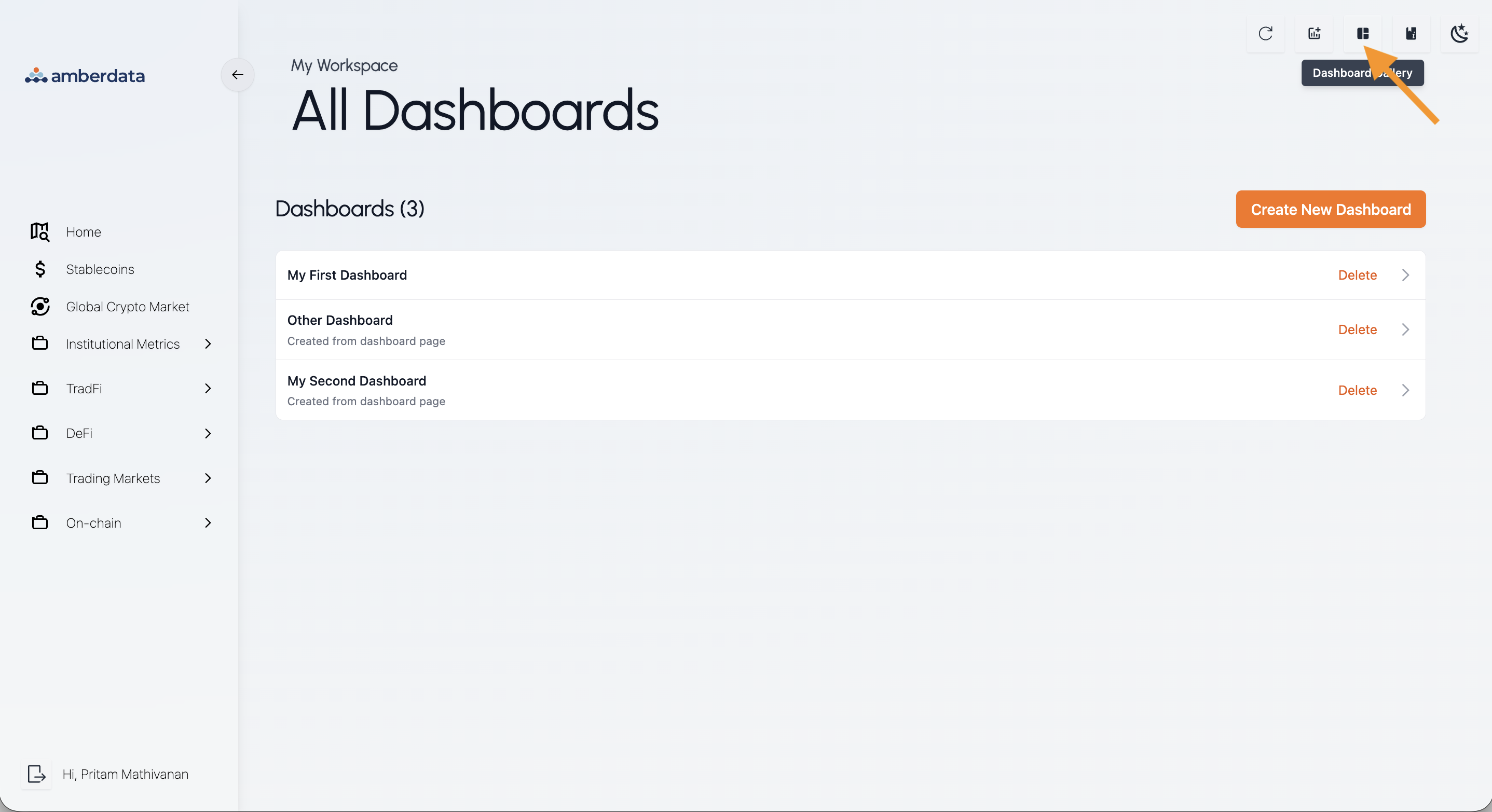
- From this view, you also have the option to create additional dashboards or delete existing ones
- Click on any of the dashboards in the list to navigate to that dashboard
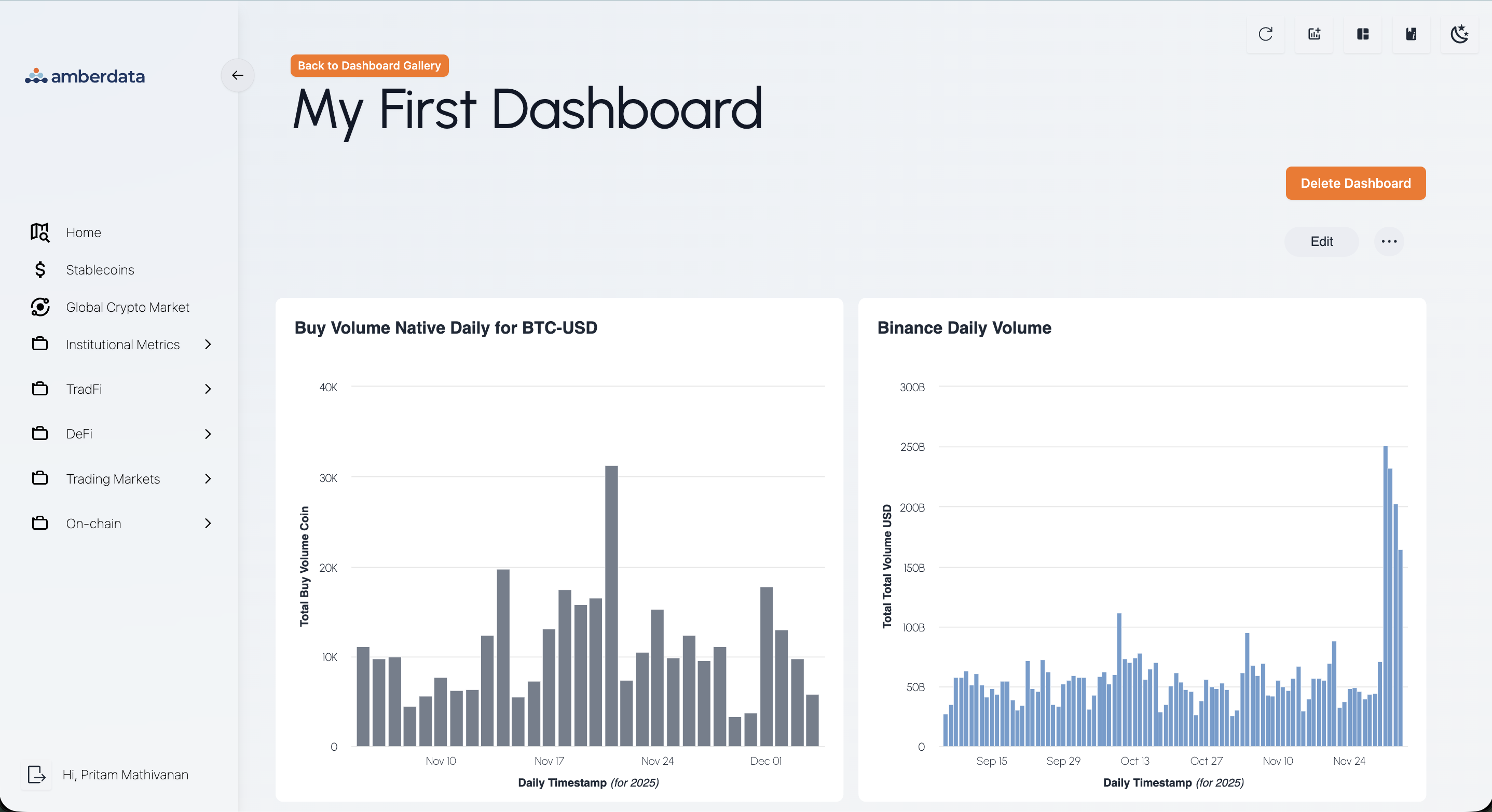
- Once you are within your dashboard, you can see the insights (if any) that you’ve already added
Resizing & Moving Dashboard Visualizations
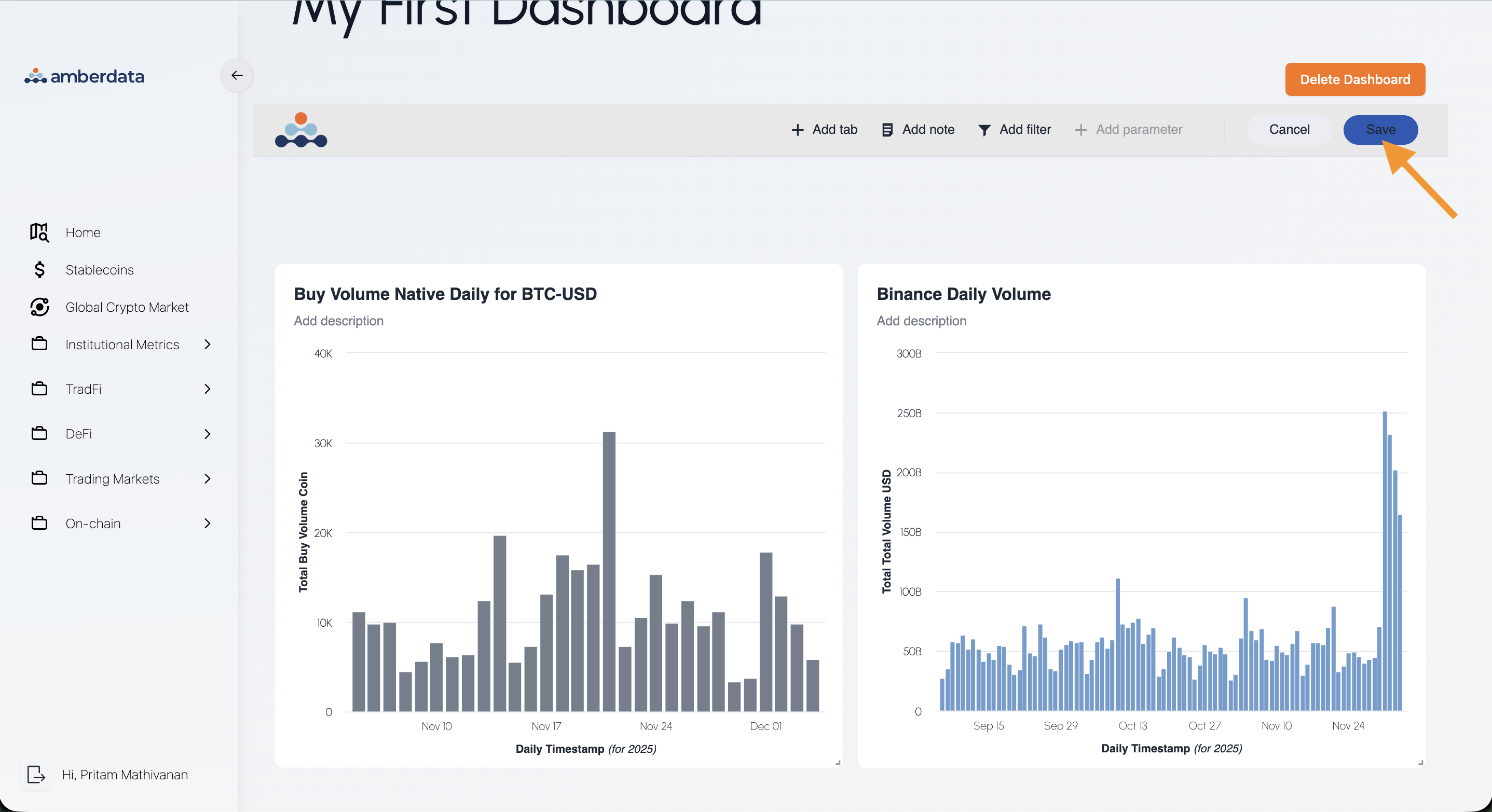
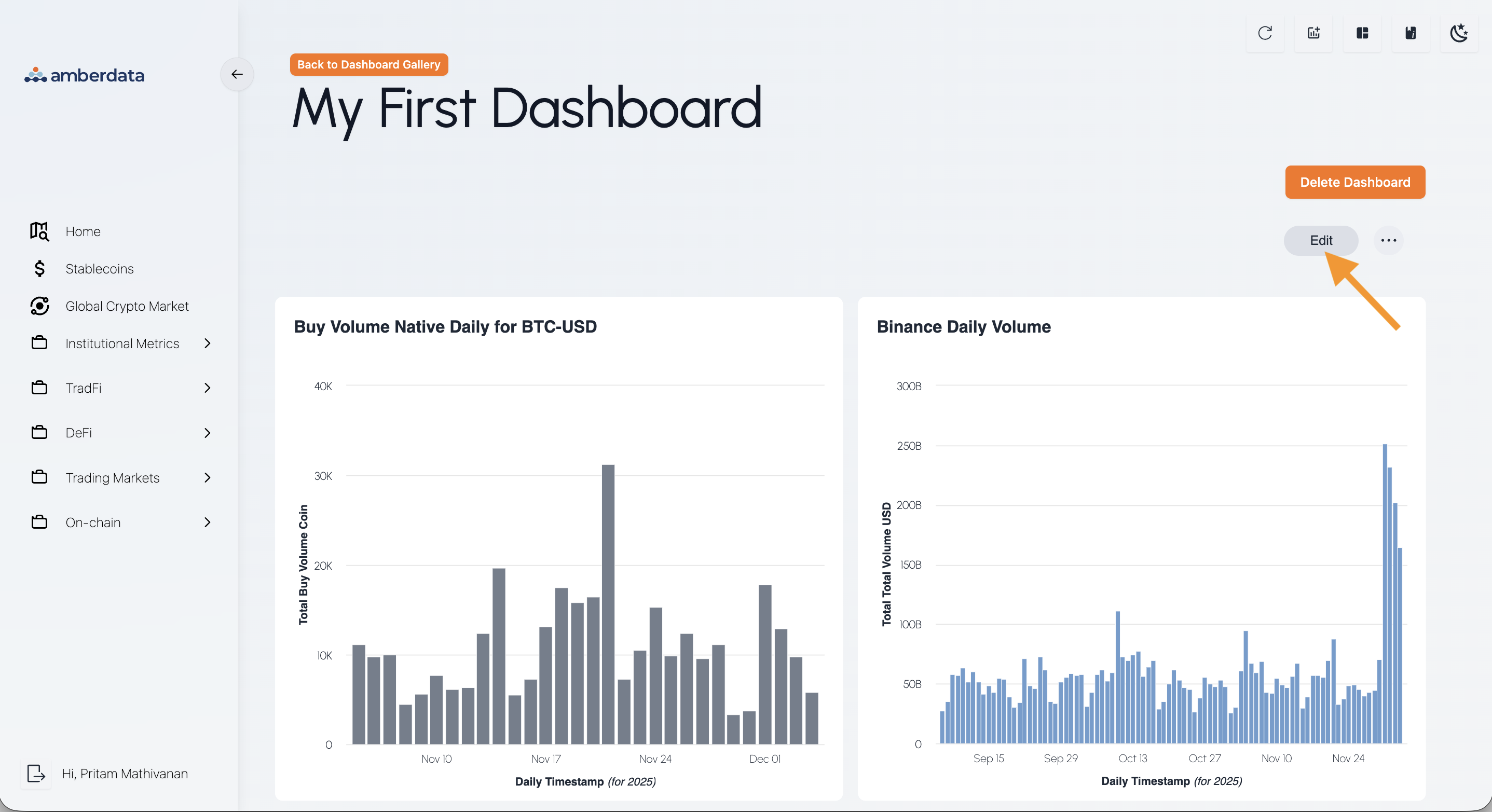
- Within the dashboard page, click on the Edit button in the top right, this will transform your current screen.
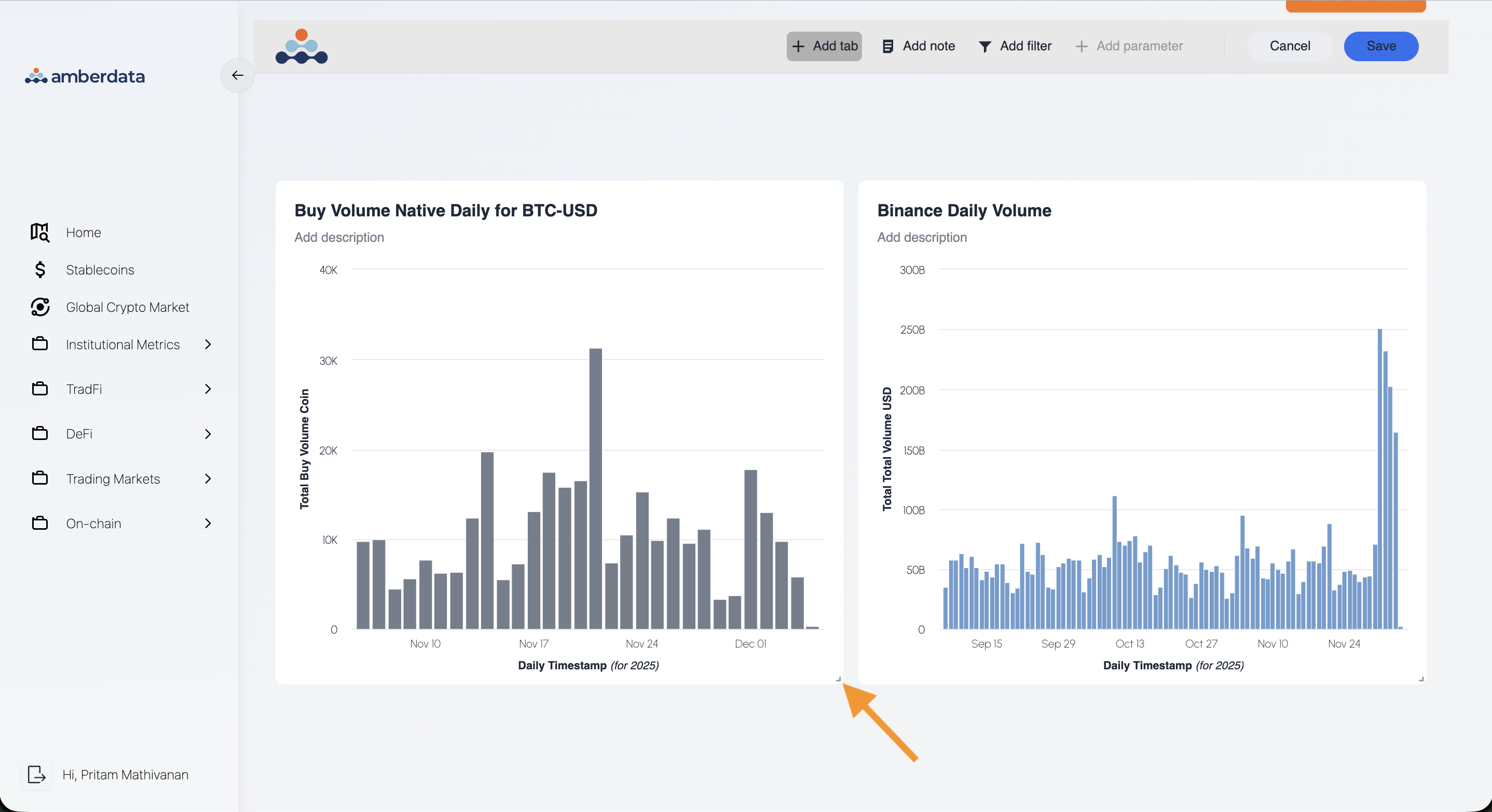
- For each visualization you should now see a corner icon in the bottom right, hovering over it will reveal a compass pointer. Click and drag your mouse to resize your chart to your desired size.
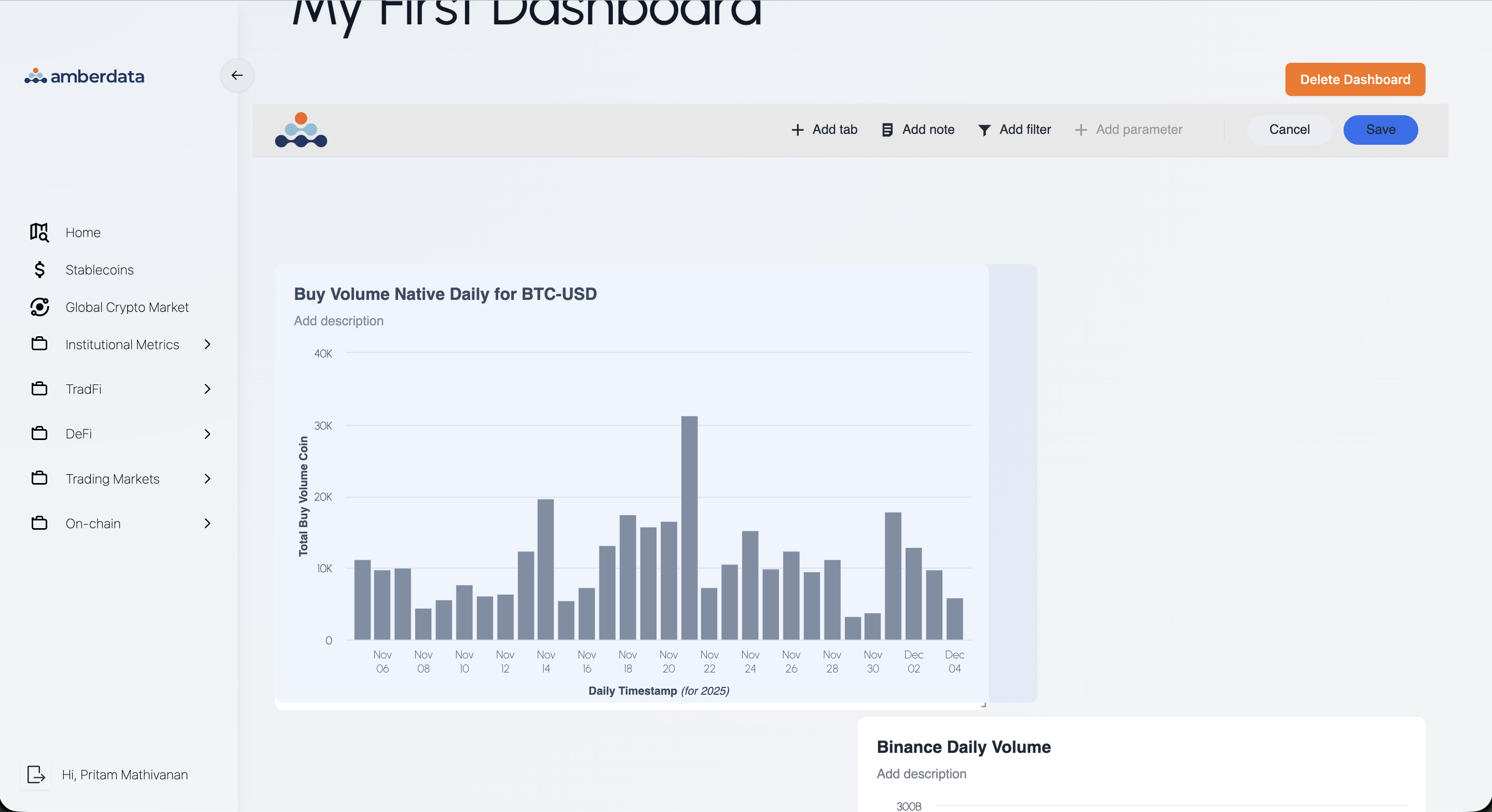
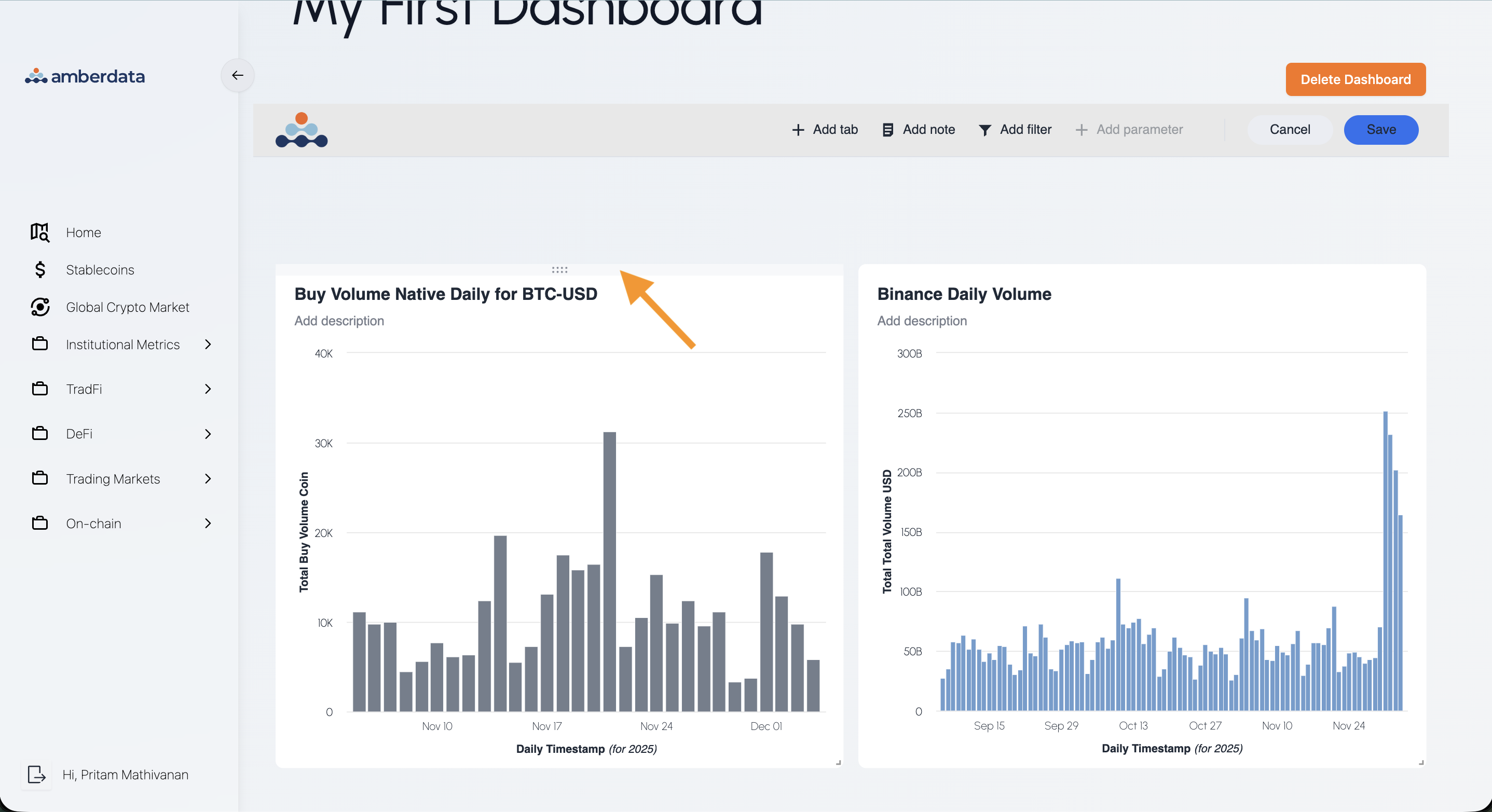
- Also for each visualization, if you hover at the top, you’ll see a drag icon. Click and drag your mouse to move the entire visualization to another part of the dashboard if you desire.
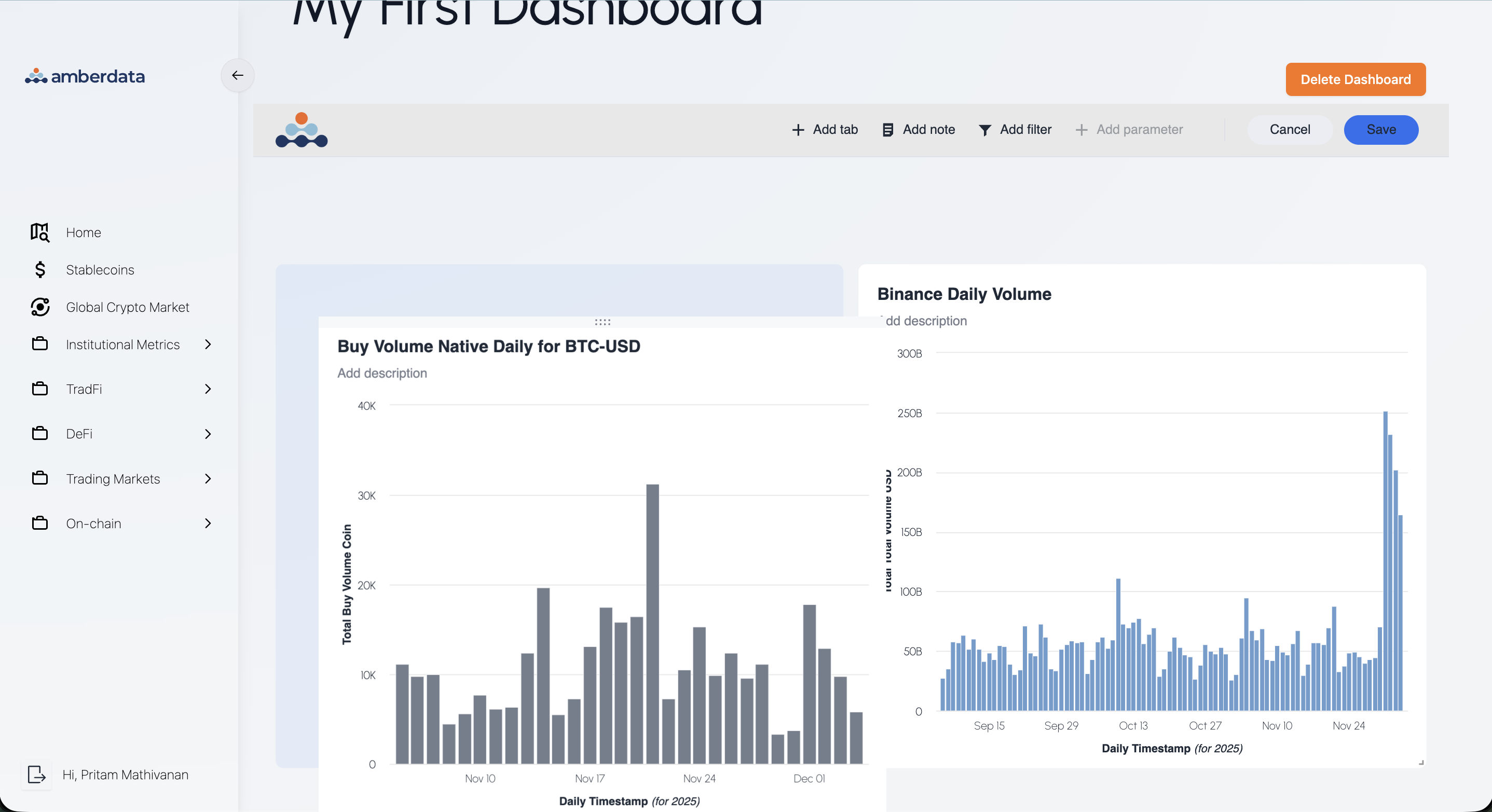
- Once you are satisfied with your edits, click on Save in the top right